

Description
ClickSyncr for Klaviyo connects your forms to Klaviyo, so every form submission becomes a profile in your Klaviyo list: automatically, with no code.
Works with your form builder
One plugin, one Klaviyo connection. ClickSyncr configures each form right inside the builder you already use, and it connects your forms to 20+ other email marketing platforms too.
«Klaviyo» is a trademark of Klaviyo, Inc. This plugin is an independent integration and is not affiliated with, endorsed by, or sponsored by Klaviyo, Inc.
Why you’ll love it
- Set up in minutes: paste your Klaviyo private API key and you’re connected. No developers, no code.
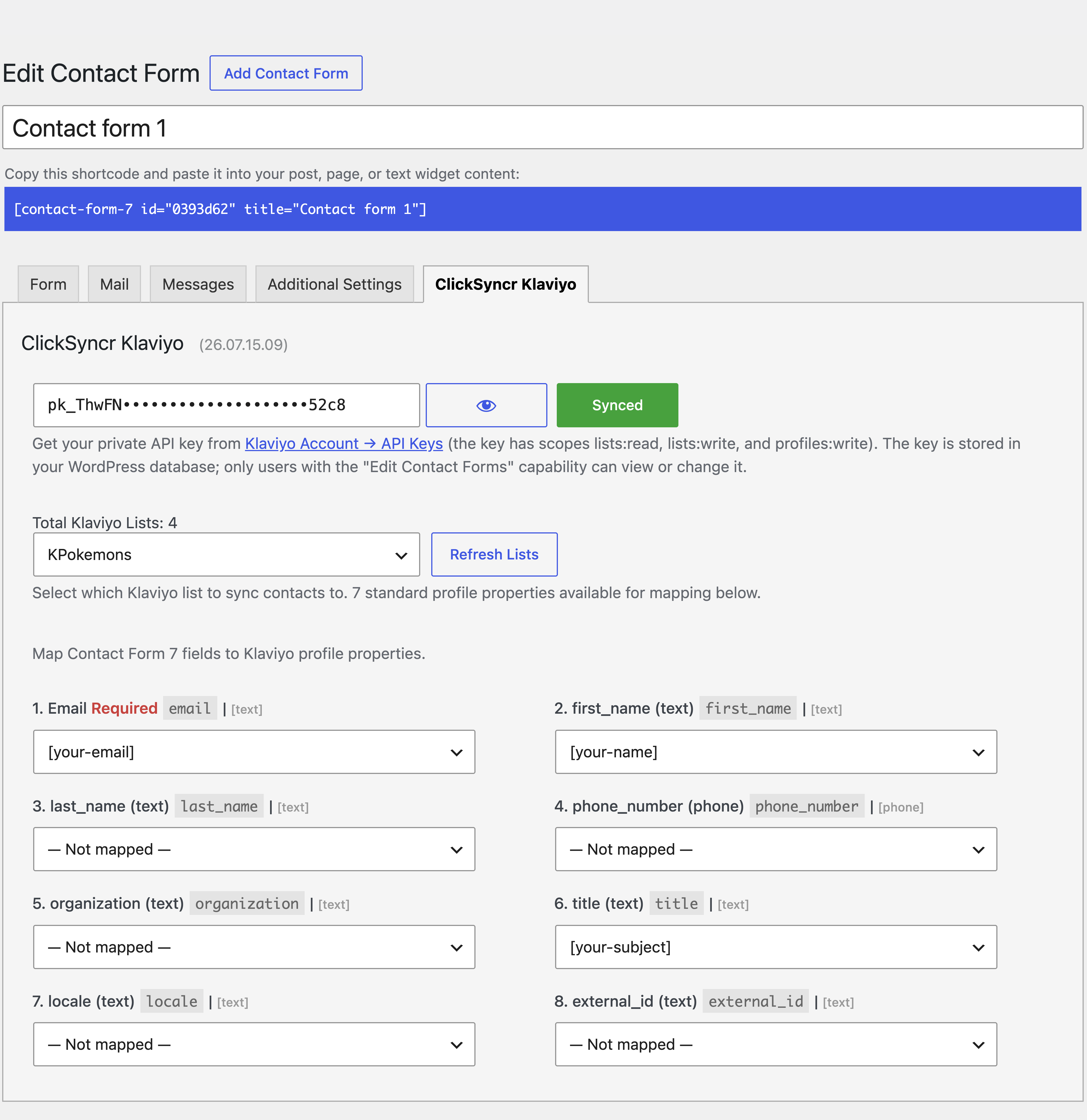
- Your lists load automatically: choose which Klaviyo list new profiles join, right inside the form editor.
- Map any field: send first name, last name, phone number, organization, and title to Klaviyo’s standard profile fields, and everything else as custom properties.
- Built-in opt-in: add a consent checkbox and ClickSyncr subscribes visitors when they tick it, or adds them as non-marketing members when they don’t.
- Subscriber status control: subscribe with marketing consent, add as a member only, or defer to your Klaviyo list’s own opt-in setting, per form.
- No duplicate profiles: Klaviyo matches profiles by email, so existing profiles are updated and new ones are created, every single time.
- A setup for every form: each form can sync to a different Klaviyo list with its own field mapping, in every supported builder.
- Sync health at a glance: an admin-bar menu shows every form’s Klaviyo sync counts and the last error, if any.
- Lightweight and fast: built to WordPress standards, so it never slows your site down.
- You stay in control: you decide exactly what data is sent to Klaviyo, and to which list.
Learn more about the forms to Klaviyo integration.
What you’ll need
- WordPress 6.7 or higher
- At least one supported form builder: Contact Form 7, WPForms, Gravity Forms, Ninja Forms, Fluent Forms, Formidable Forms, or Forminator
- A Klaviyo account with a private API key (free accounts work)
Getting your Klaviyo API key
- Log in to your Klaviyo account.
- Go to Account > Settings > API Keys.
- Create a private API key with
lists:read,lists:write,profiles:write, andsubscriptions:writeaccess. - Paste it into the ClickSyncr Klaviyo settings of any form.
Support
Need a hand? Browse the documentation, check the frequently asked questions, or contact us and we’ll be glad to help.
Klaviyo
Connected forms send their submissions to Klaviyo. Read more at Klaviyo.
Screenshots
Installation
Automatic installation
- Log in to your WordPress dashboard.
- Go to Plugins > Add New.
- Search for «ClickSyncr for Klaviyo».
- Click Install Now, then Activate.
Manual installation
- Download the plugin ZIP file.
- In your WordPress dashboard, go to Plugins > Add New > Upload Plugin.
- Choose the ZIP file and click Install Now.
- Activate the plugin.
After installation
- Edit any form and open its ClickSyncr Klaviyo settings.
- Paste your Klaviyo private API key, choose a list, and map your fields (email is required).
- Save. Every submission now syncs to Klaviyo automatically. Full guidance lives on the ClickSyncr for Klaviyo page.
FAQ
-
Do I need a Klaviyo account?
-
Yes. You’ll need an active Klaviyo account and a private API key to sync your subscribers. Free Klaviyo accounts work.
-
Which form builders are supported?
-
Contact Form 7, WPForms, Gravity Forms, Ninja Forms, Fluent Forms, Formidable Forms, and Forminator. At least one of them must be installed and activated.
-
Where do I find my Klaviyo API key?
-
Log in to Klaviyo, go to Account > Settings > API Keys, and create a private key with
lists:read,lists:write,profiles:write, andsubscriptions:writeaccess. Each builder setup guide shows exactly where to paste it. -
Which fields can I map?
-
Map your form fields to Klaviyo’s standard profile fields: email, first name, last name, phone number, organization, and title. Any other mapped field is sent as a custom property on the profile.
-
How does the opt-in consent field work?
-
Pick a consent field (a checkbox, acceptance, or radio) from your form. When a visitor ticks it, they are subscribed with marketing consent; if they leave it unticked, they are added to the list as a member only, without marketing consent, and Klaviyo will not email them. Leave it as «None» to use the subscriber status you chose for the form.
-
Does it work with Klaviyo double opt-in?
-
Yes. Choose «Use list setting» as the subscriber status and your list’s own opt-in process decides: double opt-in lists send a confirmation email, single opt-in lists subscribe right away. The Active and Unconfirmed choices override it per form.
-
Will it create duplicate profiles?
-
No. Klaviyo matches profiles by email address: existing profiles are updated and new ones are created.
-
Can I use different settings for different forms?
-
Yes. Every form has its own ClickSyncr Klaviyo setup, so each can sync to a different list.
-
ClickSyncr for Klaviyo Privacy
-
The plugin sends only the fields you map, and only to Klaviyo. Nothing is collected by ClickSyncr itself. Read about our policy.
Reviews
There are no reviews for this plugin.
Contributors & Developers
“ClickSyncr for Klaviyo – Contact Form 7, WPForms, Gravity Forms, Ninja Forms, Fluent Forms & Formidable” is open source software. The following people have contributed to this plugin.
Contributors
Interested in development?
Browse the code, check out the SVN repository, or subscribe to the development log by RSS.
Changelog
For the full changelog with details, see the release history.
26.08.14.19
Version 26.08.14.19 release notes
26.07.15.20
Version 26.07.15.20 release notes
26.07.15.19
Version 26.07.15.19 release notes